
Client Portal#
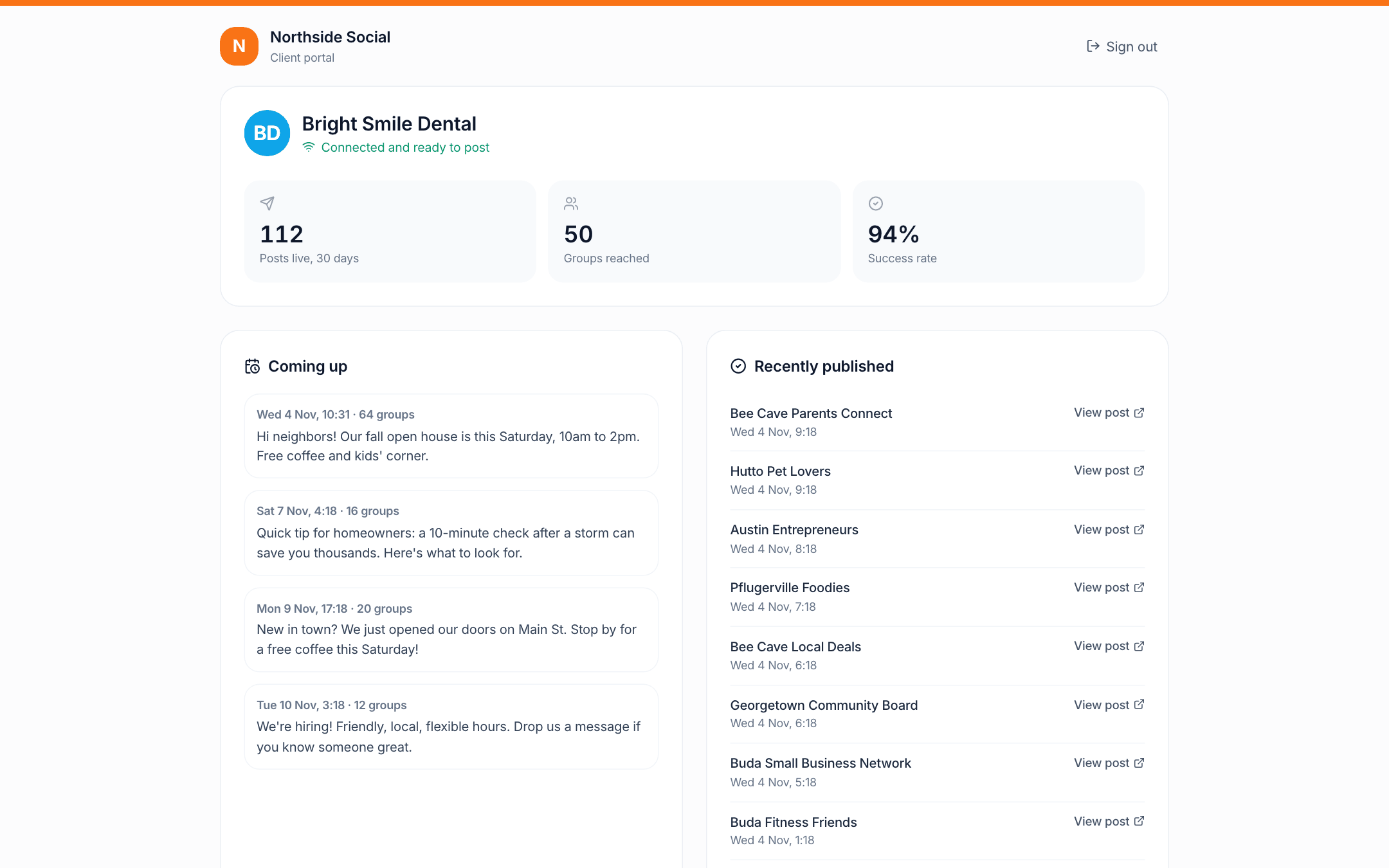
The client portal gives a client their own read-only login to see what you are posting for them. It carries your agency name, logo and brand colour, so it feels like part of your service.
Clients can see everything but change nothing. You stay in control of the posting.
Set up the portal for a client#
- Go to Accounts in your Agency dashboard
- Find the account in the list and click Set up in the Client portal column
- Enter the Client email
- Click Send portal invite
Your client gets an email with a link to set their password. The Client portal column then shows On for that account.
Info
The portal email must not already have its own PilotPoster login. If your client already uses PilotPoster with that address, use a different email for the portal.
What your client does#
- Open the invite email and set a password
- Sign in at app.pilotposter.com/login
- They land straight on their portal
What clients see#
| Section | What it shows |
|---|---|
| Status | Whether the account is connected and ready to post, or offline |
| Stats | Posts live in the last 30 days, groups reached and success rate |
| Coming up | Scheduled posts with date, time and how many groups each goes to |
| Recently published | Each group a post went live in, with a View post link to the live post on Facebook |
If the account is offline, the portal tells the client to open Chrome with the PilotPoster tab so posts can go out.
Clients can disconnect#
The portal has a Disconnect my Facebook account button. If a client uses it, your agency can no longer post from their Facebook account and their scheduled posts stop. To work together again, send them a new connect link from Add account.
Turn the portal off#
You can turn off portal access at any time:
- Go to Accounts
- Click On in the Client portal column for that account
- Click Turn off portal
The client can no longer sign in to the portal. Posting for the account carries on as normal. From the same dialog you can also Resend invite if the client did not get the email.
Daily digest for you#
As the agency owner, you get a short email each morning summarising the day before across all accounts: how many posts went live, how many failed and which accounts are offline. It links straight to your Agency dashboard.
Tip
Check the digest for offline accounts first. An offline account is the most common reason a client's posts are late.