Connect a Client's Facebook Account#
Every Facebook account you manage connects to your agency once. After that you can schedule and post for it from your Agency dashboard. Nobody shares a Facebook password at any point: the account connects from a browser where it is already logged in to Facebook.
Add an account#
- Go to Accounts in your Agency dashboard
- Click Add account
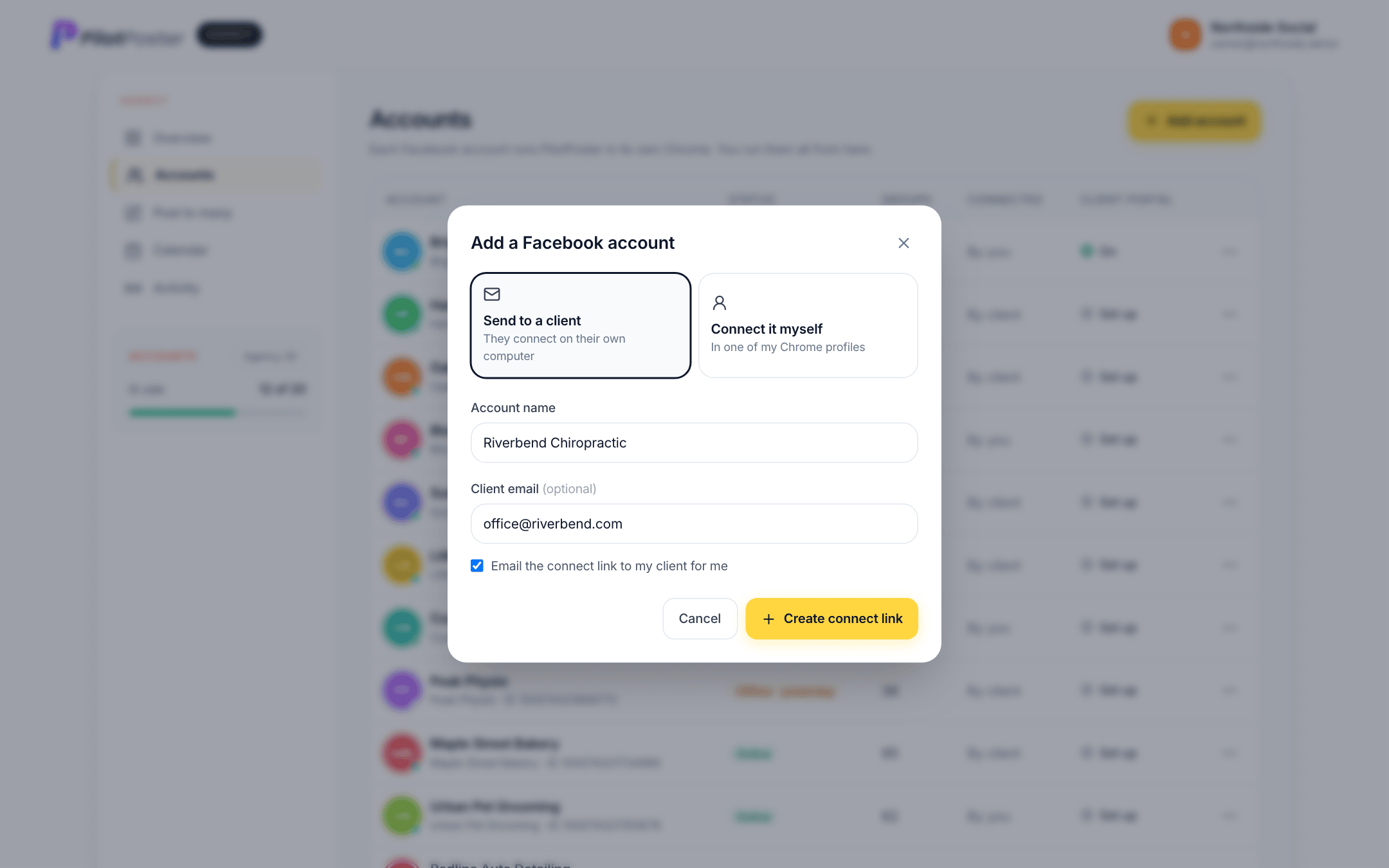
- Choose how the account connects:
- Send to a client: they connect on their own computer
- Connect it myself: you connect it in one of your own Chrome profiles
- Enter an Account name (for example the client's business name)
- Click Create connect link
Send to a client#
Add the Client email (optional). Tick Email the connect link to my client for me and PilotPoster sends your client a branded email with the link. You can also copy the link and send it yourself however you usually talk to that client.
Connect it myself#
Use this when you run the account on your own computer. Open the link in the Chrome profile where that Facebook account is logged in. If you manage several accounts on one machine, see Run several accounts on one computer.
What your client does#
Send your client these steps along with the link:
- Open the link in Google Chrome on a computer (not a phone or tablet)
- Install the PilotPoster extension when the page asks
- Log in to Facebook in that same browser
- If asked, click the PilotPoster icon in the Chrome toolbar
- Check that Facebook account found shows the right account, then click the Connect to button (it shows your agency name)
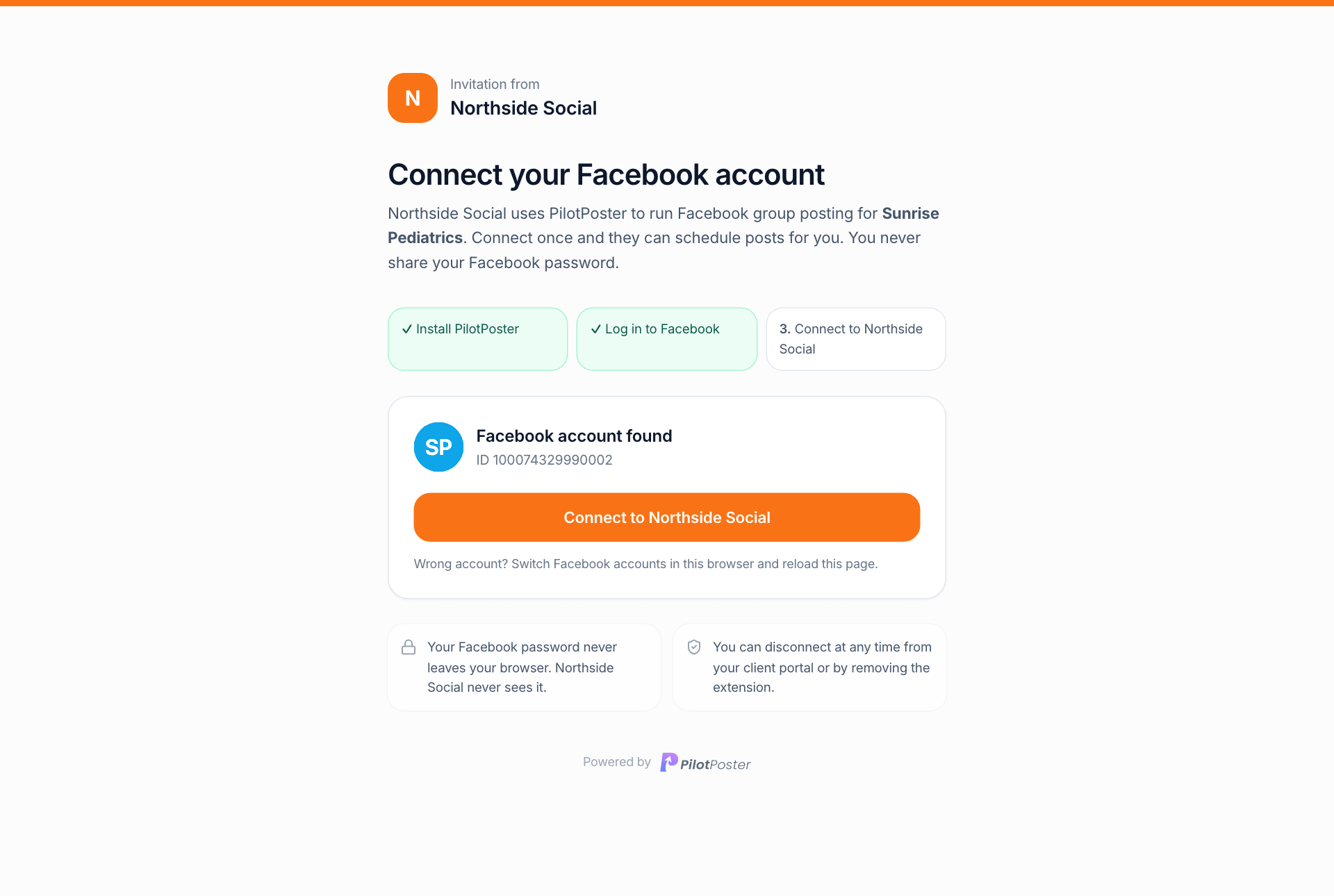
The page shows your agency name, logo and brand colour, and tracks progress through three steps: install PilotPoster, log in to Facebook, connect.
Once connected, the account appears in Accounts with By client in the Connected column.
Info
Your client's Facebook password never leaves their browser. You never see it, and neither does PilotPoster. Clients can disconnect at any time from their client portal or by removing the extension.
If the Facebook account already uses PilotPoster#
If the Facebook account is already linked to its own PilotPoster account, the connect page asks that person to sign in to PilotPoster to confirm.
Link rules#
- Each connect link works once
- Links expire after 14 days
- Unused links are listed under Waiting to connect in Accounts, where you can cancel them
If a link expires, create a new one with Add account.
Seat limits#
Each active Facebook account uses one slot on your plan. If every slot is in use:
- Add account tells you that you are using all the accounts on your plan
- A client opening an existing link sees that your agency has used all its accounts and is asked to try again later
To free a slot, open the ... menu on an account in Accounts and choose Pause or Remove account. Pausing frees the slot, and you can resume the account later when you have room. Or upgrade in Plan & billing. See Agency Setup.
Troubleshooting#
"Already managed by another agency"#
A Facebook account can belong to one agency at a time. The client needs to disconnect it from the other agency first, then open your link again.
Extension not detected#
- Make sure the link is open in Google Chrome on a desktop or laptop
- Confirm the PilotPoster extension is installed and enabled at
chrome://extensions - Reload the connect page after installing
"Facebook account found" shows the wrong account#
The page uses whichever Facebook account is logged in to that browser. Switch to the correct Facebook account in the same browser, then reload the connect page.
If you connect accounts yourself, open the link in the Chrome profile that belongs to that client.
Account shows offline#
An account posts only while its browser is running with the PilotPoster tab open. If Accounts shows Offline:
- Open Chrome on the computer (and profile) where the account connected
- Make sure the PilotPoster tab is open
- Check that Facebook is still logged in
Scheduled posts are not lost while an account is offline. They wait and go out once the account is back online.