
Post to Many Accounts#
Post to many lets you write a post once and send it from several client accounts. Each account posts to its own groups, from its own browser, on a staggered schedule.
Write the post#
Go to Agency → Post to many.
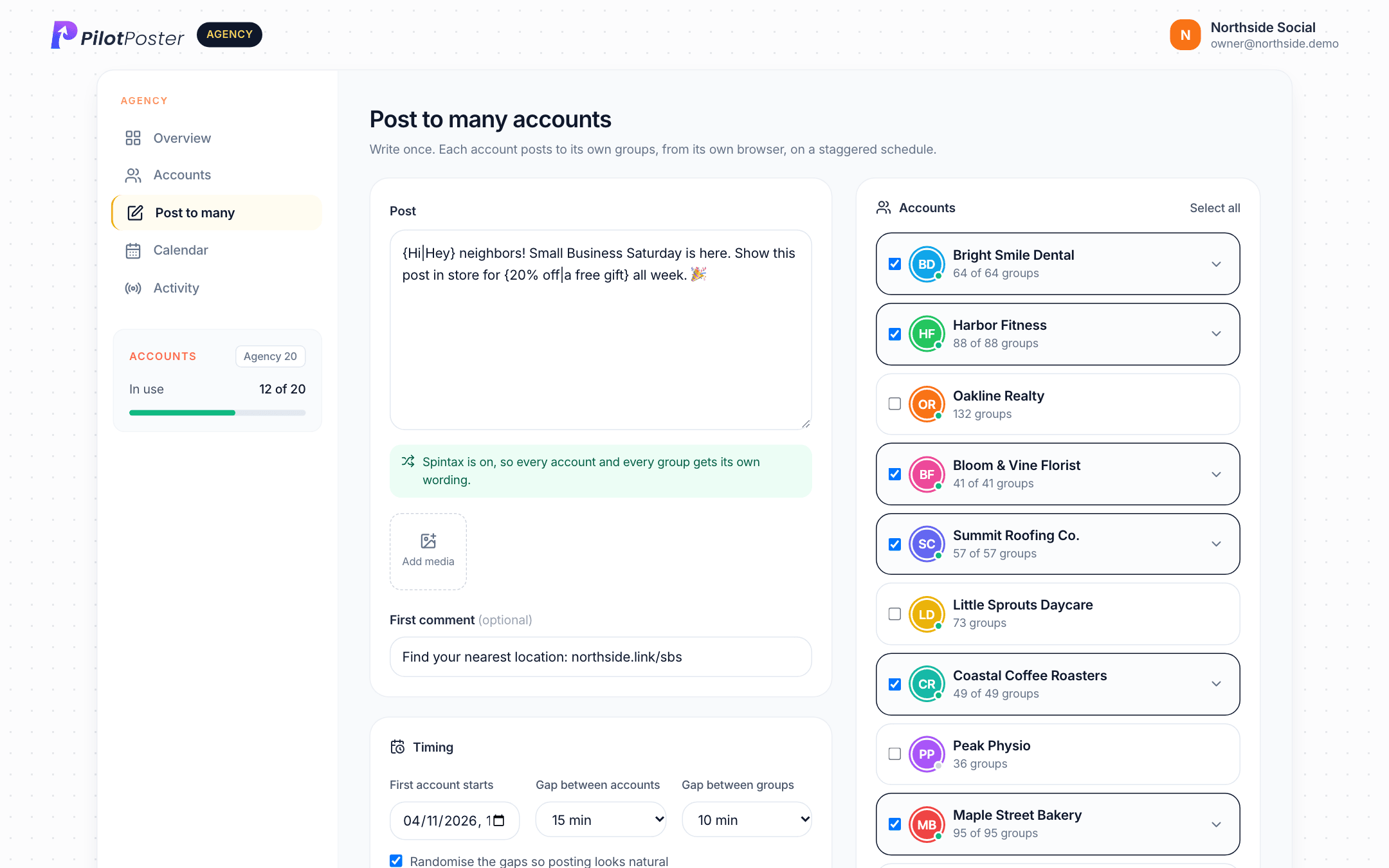
- Write your post in the Post box
- Use spintax to vary the wording, for example
{Hi|Hey} neighbors!. When spintax is on, every account and every group gets its own wording. - Click Add media to attach images or video
- Add a First comment (optional). It posts on each published post, which is a good place for a link.
Pick accounts and groups#
The Accounts list on the right shows every connected account and how many groups it has. Tick the accounts that should post, or click Select all.
Click the arrow on a ticked account to choose its groups:
| Option | What it posts to |
|---|---|
| All groups | Every group that account has joined |
| List: a saved list | One of that account's saved group lists |
| Pick groups | Groups you tick one by one |
Per-account text#
Under the group picker, the Optional: different text for this account box overrides the main post for that account only. Use it when one client needs different wording, a different offer or a local detail. Accounts without an override use the main post.
Timing#
| Setting | What it does |
|---|---|
| First account starts | Date and time the first account begins posting |
| Gap between accounts | How long after one account starts before the next one begins |
| Gap between groups | Pause between each group within one account |
| Randomise the gaps | Varies each gap slightly so posting looks natural |
For example, with 6 accounts, a 15 minute gap between accounts and a 10 minute gap between groups, the first account starts at your chosen time, the second 15 minutes later, and so on. Each account works through its own groups 10 minutes apart.
Account safety
Each account's Safety Autopilot settings still apply, so every account keeps its own safe pace. Keep gaps between groups reasonable, especially for new accounts. See Account Safety.
Schedule#
The summary box shows how many group posts you are about to schedule and across how many accounts. Click Schedule on N accounts to confirm.
Offline accounts are not skipped. Their posts wait and go out as soon as that account's PilotPoster tab is open again.
Track progress#
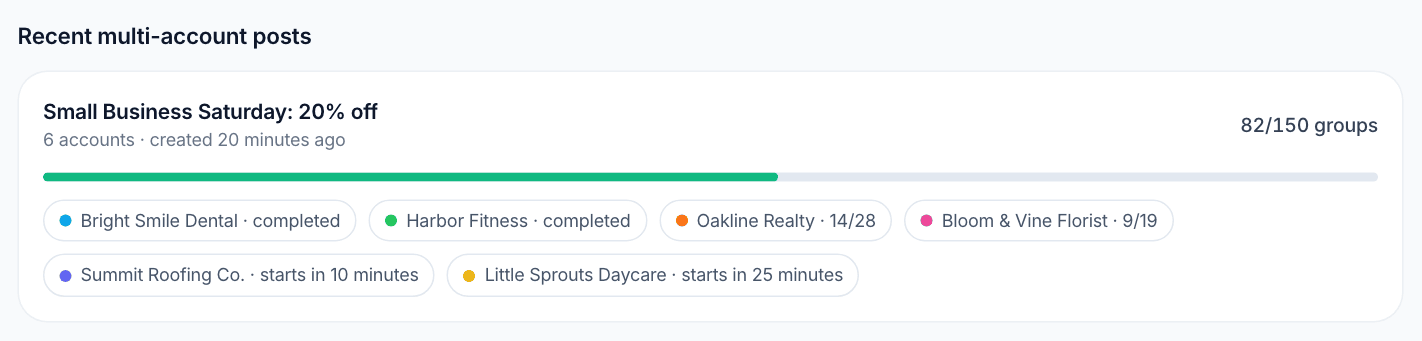
After you schedule, the batch appears under Recent multi-account posts. Each batch shows overall progress (groups posted out of total) and a status for every account: completed, groups done so far, or when it starts.
Overview, Calendar and Activity#
- Overview shows totals across your agency (accounts, online now, posts in 7 days, success rate, scheduled) and a card per account with its groups, recent posts, success rate and next post.
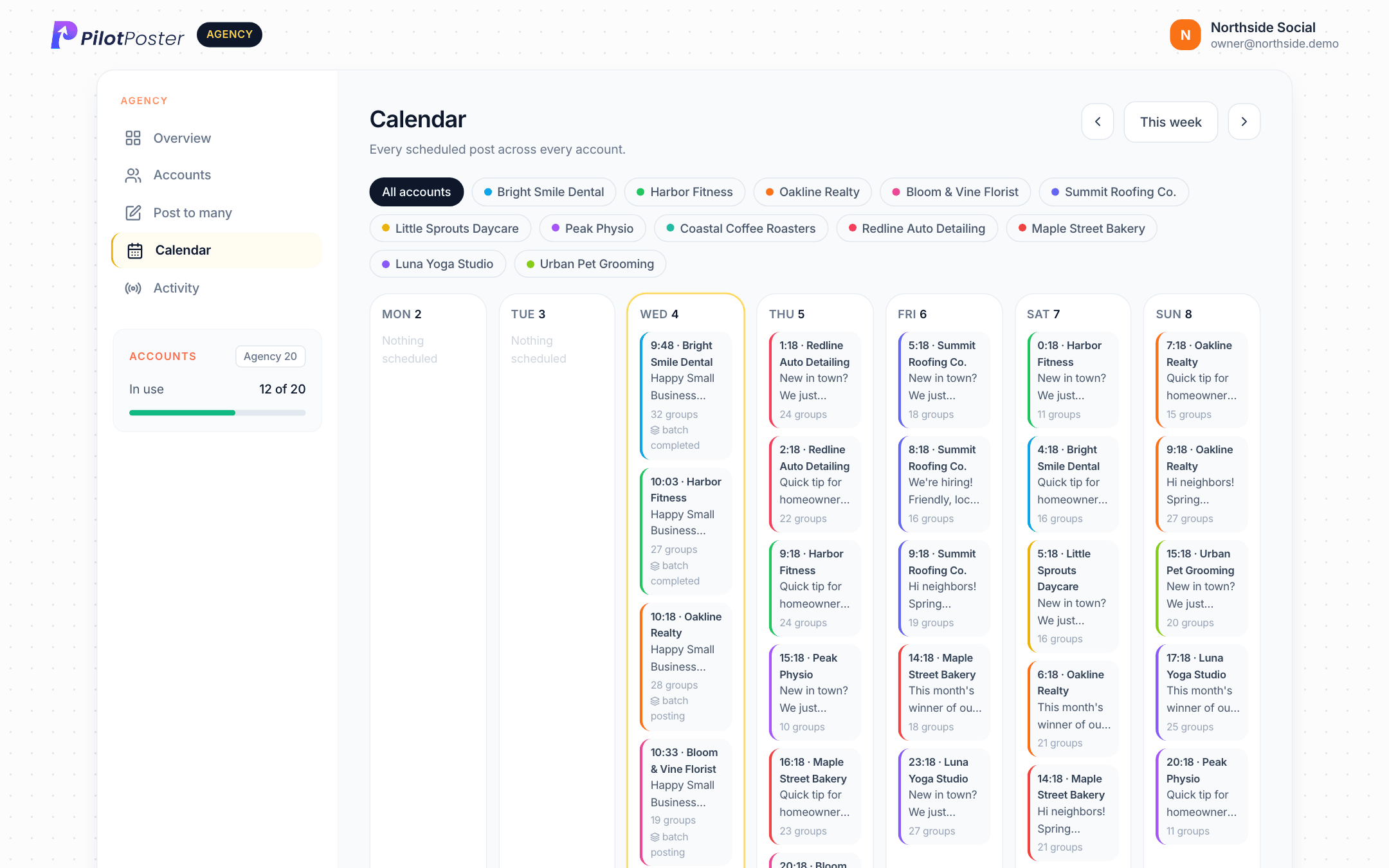
- Calendar shows everything scheduled across all accounts in one view.
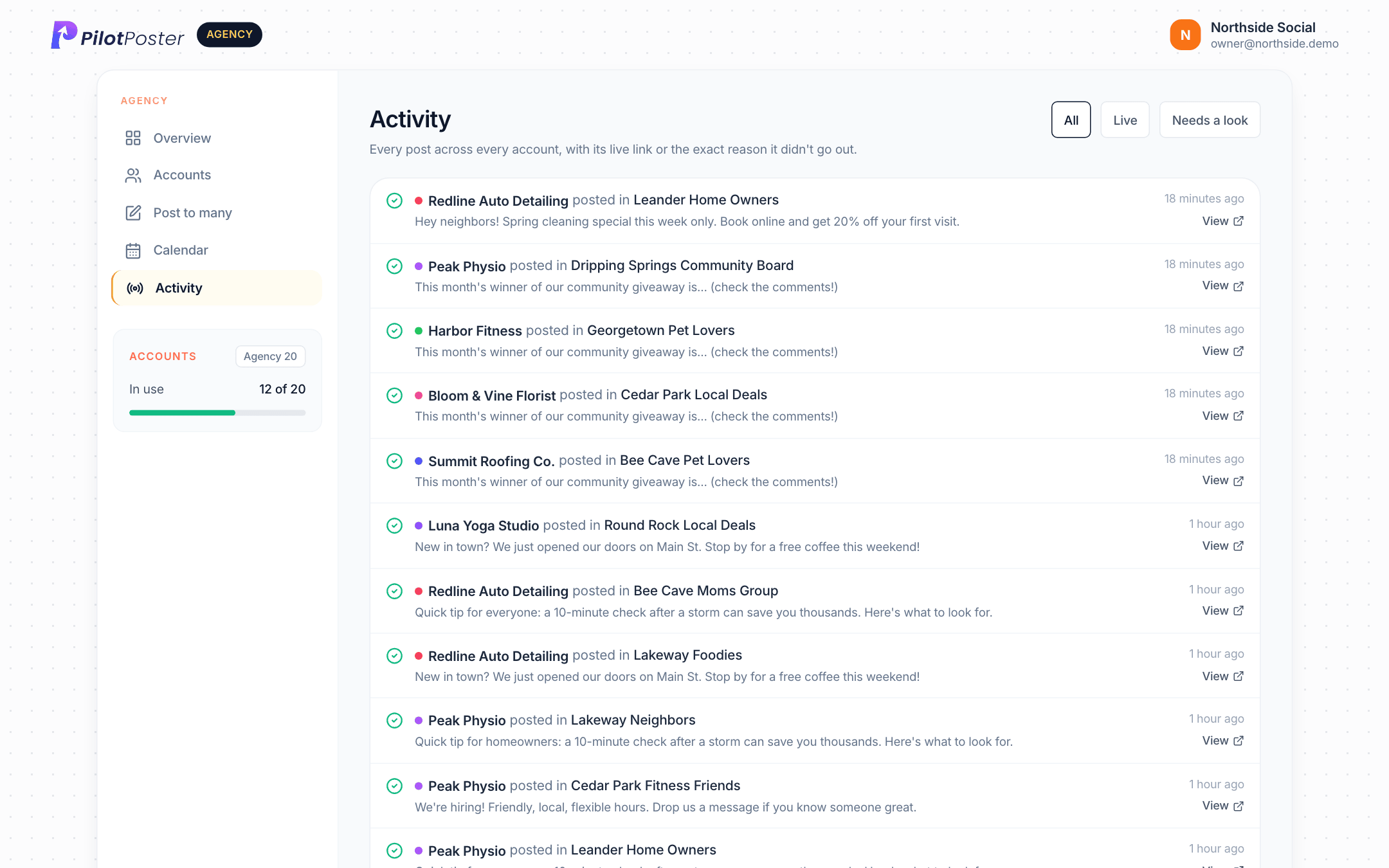
- Activity shows results as posts go out, account by account.
Work inside one account#
To do anything you would do in a single PilotPoster account (campaigns, groups, media, RSS, logs, insights), click Open on an account card in Overview. You get that account's full dashboard.
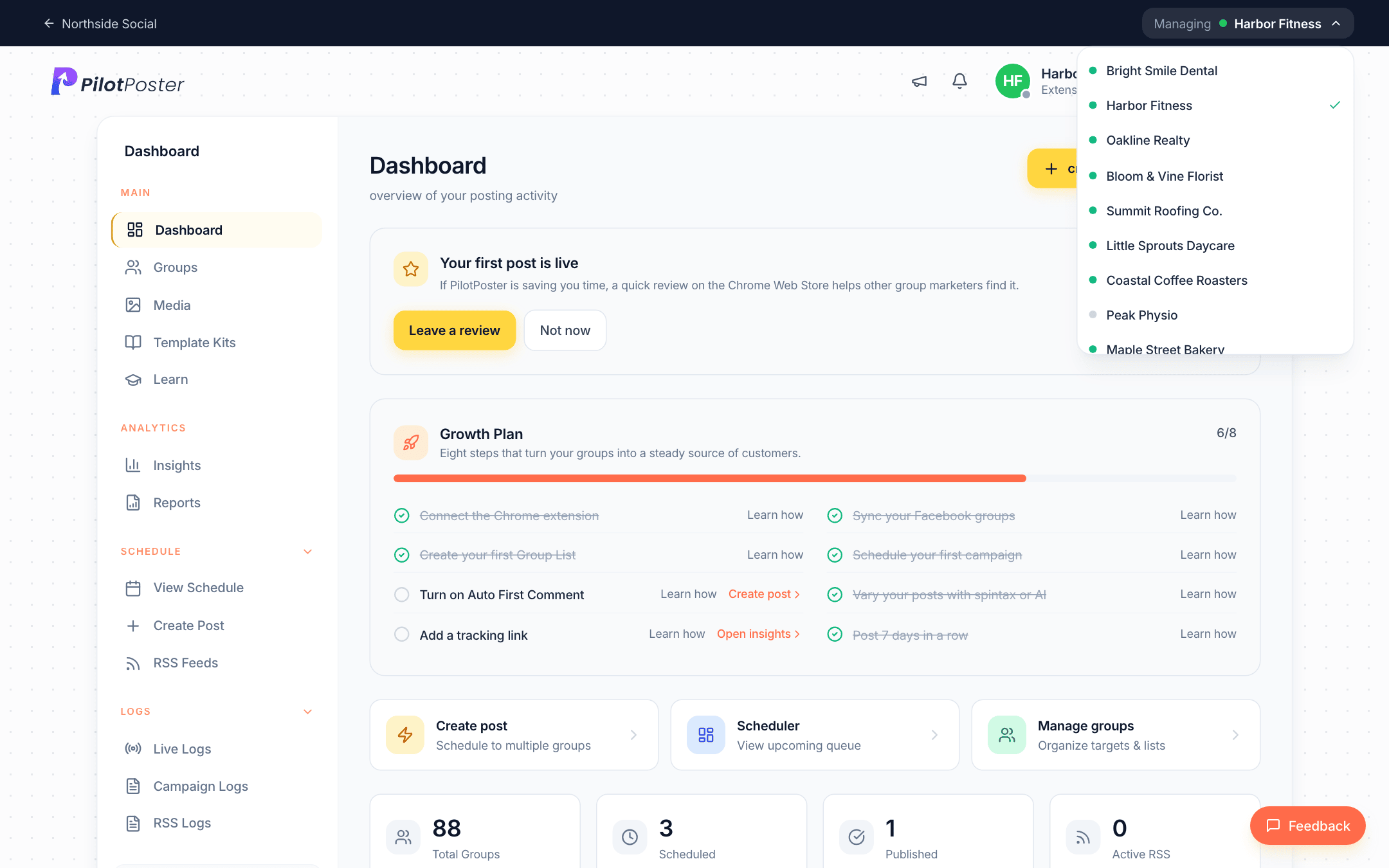
While inside an account:
- The Managing switcher at the top right shows which account you are in. Click it to jump straight to another account.
- Click the ← back link with your agency name at the top left to return to your Agency dashboard.